
Unlock unparalleled design and functionality by learning how to develop a custom WordPress theme. This comprehensive guide provides a step-by-step blueprint, from setting up your directory to optimizing for SEO and performance. Building a custom theme ensures your website is unique, efficient, secure, and tailored to your exact needs, avoiding bloat and enhancing user experience for professional results and higher engagement rates.
Strategic Pillar Context Maps
Creating a website that stands out requires more than just basic templates. If you want full control over design and functionality, learning how to develop a custom WordPress theme is a game-changer. This guide walks you through the process step by step, ensuring you build something unique and efficient. Whether you’re a beginner or an experienced developer, these instructions will help you achieve professional results.
WordPress powers over 40% of the web, making it a popular choice for sites of all sizes. Starting from scratch allows you to tailor every element to your needs, avoiding the bloat often found in pre-made themes. By the end of this article, you’ll have the knowledge to create a theme that’s responsive, secure, and optimized for performance.
Before diving in, ensure you have a local development environment set up, such as XAMPP or MAMP, along with WordPress installed. You’ll also need a code editor like VS Code. Let’s get started on your journey to theme mastery.
| Step Number | Description | Key Action |
|---|---|---|
| Step 1 | Set up directory | Create folder and add style.css, index.php |
| Step 2 | Learn hierarchy | Study WordPress template structure |
| Step 3 | Design header/footer | Use get_header() and get_footer() |
| Step 4 | Style with CSS | Enqueue in functions.php |
| Step 5 | Add functions | Register menus and supports |
| Step 6 | Create templates | Use Template Name comment |
| Step 7 | Integrate The Loop | Use have_posts() and the_post() |
| Step 8 | Add widgets | Register_sidebar() |
| Step 9 | Optimize SEO | Clean code and meta tags |
| Step 10 | Test and deploy | Use Theme Check and upload |
Why Choose a Custom WordPress Theme?
Opting for a custom WordPress theme offers unparalleled flexibility. Unlike off-the-shelf options, it lets you integrate specific features without unnecessary code. This results in faster load times and better SEO performance.
One key advantage is customization. You can design layouts that match your brand perfectly. Security is another benefit, as you avoid vulnerabilities from third-party themes. Plus, it’s scalable; as your site grows, your theme can evolve without restrictions.
According to experts, sites with tailored themes see higher engagement rates. This approach also enhances user experience, leading to lower bounce rates. If you’re aiming for a professional edge, this is the way to go.
Prerequisites for Building a Custom WordPress Theme
To succeed, gather the right tools and knowledge. First, understand HTML, CSS, and PHP basics, as they’re the foundation of WordPress themes. JavaScript knowledge helps for interactive elements.
Install WordPress locally. Use tools like Local by Flywheel for an easy setup. Familiarize yourself with the WordPress Codex and Theme Handbook for reference.
You’ll need:
- A text editor or IDE.
- Access to a server for testing.
- Basic command-line skills for tasks like file management.
Ensure your environment supports the latest WordPress version to avoid compatibility issues.
Step 1: Setting Up Your Theme Directory
Begin by creating a new folder in the wp-content/themes directory. Name it something descriptive, like my-custom-theme. Inside, add essential files: style.css and index.php.
In style.css, add the theme header:
/*
Theme Name: My Custom Theme
Theme URI: http://example.com/
Author: Your Name
Author URI: http://example.com/
Description: A custom theme built from scratch.
Version: 1.0
*/This metadata tells WordPress about your theme. Activate it from the admin dashboard to see a basic page.
Step 2: Understanding WordPress Template Hierarchy
WordPress uses a template hierarchy to determine which file loads for a page. For example, single.php handles single posts, while page.php manages pages.Study the hierarchy diagram in the WordPress documentation. This knowledge ensures your custom WordPress theme displays content correctly across different views.
Create basic templates like header.php, footer.php, and sidebar.php to structure your site.
Step 3: Designing the Header and Footer
The header often includes the site title, navigation, and logo. Use get_header() in your templates to include it.
In header.php:
<!DOCTYPE html>
<html <?php language_attributes(); ?>>
<head>
    <meta charset="<?php bloginfo('charset'); ?>">
    <title><?php bloginfo('name'); ?></title>
    <?php wp_head(); ?>
</head>
<body <?php body_class(); ?>>
    <header>
        <h1><a href="<?php echo home_url(); ?>"><?php bloginfo('name'); ?></a></h1>
        <?php wp_nav_menu(array('theme_location' => 'primary')); ?>
</header>For the footer, add closing tags and wp_footer().
Step 4: Styling with CSS
Enqueue your styles in functions.php. Create this file and add:
<?php
function my_theme_scripts() {
    wp_enqueue_style('main-style', get_stylesheet_uri());
}
add_action('wp_enqueue_scripts', 'my_theme_scripts');Add CSS rules in style.css for layout, colors, and typography. Use media queries for responsiveness.
Step 5: Adding Functionality with Functions.php
This file is crucial for adding features. Register menus:
function register_my_menus() {
    register_nav_menus(array(
        'primary' => __('Primary Menu'),
    ));
}
add_action('init', 'register_my_menus');Include support for thumbnails, custom logos, and more.
Step 6: Creating Page Templates
For unique layouts, make custom page templates. Start with:
/*
Template Name: Full Width Page
*/Then, use it in your pages via the admin interface.
Step 7: Integrating The Loop
The Loop displays content. In index.php:
<?php if (have_posts()) : while (have_posts()) : the_post(); ?>
    <article>
        <h2><?php the_title(); ?></h2>
        <?php the_content(); ?>
    </article>
<?php endwhile; endif; ?>This pulls posts or pages dynamically.
Step 8: Adding Widgets and Sidebars
Register sidebars in functions.php
function my_theme_widgets_init() {
    register_sidebar(array(
        'name' => __('Main Sidebar'),
        'id' => 'main-sidebar',
        'before_widget' => '<div class="widget">',
        'after_widget' => '</div>',
    ));
}
add_action('widgets_init', 'my_theme_widgets_init');Call it with dynamic_sidebar(‘main-sidebar’).
Step 9: Optimizing for SEO and Performance
Use clean code for better SEO. Add meta tags and ensure fast loading. Minify CSS and JS.
Integrate with plugins like Yoast for additional optimization.
Step 10: Testing and Deployment
Test on multiple devices and browsers. Use tools like Theme Check plugin.Once ready, upload to your live site and activate.
Advanced Techniques in Custom WordPress Theme Development
Go beyond basics with child themes for updates. Or add custom post types:
function create_custom_post_type() {
    register_post_type('portfolio', array(
        'labels' => array('name' => __('Portfolio')),
        'public' => true,
    ));
}
add_action('init', 'create_custom_post_type');This expands functionality.
Avoid these Mistakes When Creating a Custom WordPress Theme
Don’t forget to sanitize inputs for security. Avoid hard-coding paths; use functions like get_template_directory_uri().
Over-complicating the design early on can lead to issues. Start simple and iterate.
Maintaining Your Theme
Keep code organized. Use version control like Git. Update regularly to match WordPress core.
Document your code for future reference.
Tools and Resources for Theme Developers
Use Underscores as a starter theme. Explore Bootstrap for responsive grids.Join communities like WordPress forums for support.
Successful Custom Themes
Many sites, like those of major brands, use custom themes for unique experiences. Analyze them for inspiration.
Empower Your Site with a Custom WordPress Theme
Building a custom WordPress theme from scratch empowers you to create sites that truly reflect your vision. With these steps, you’re equipped to produce high-quality work. Remember, practice is key to mastery.
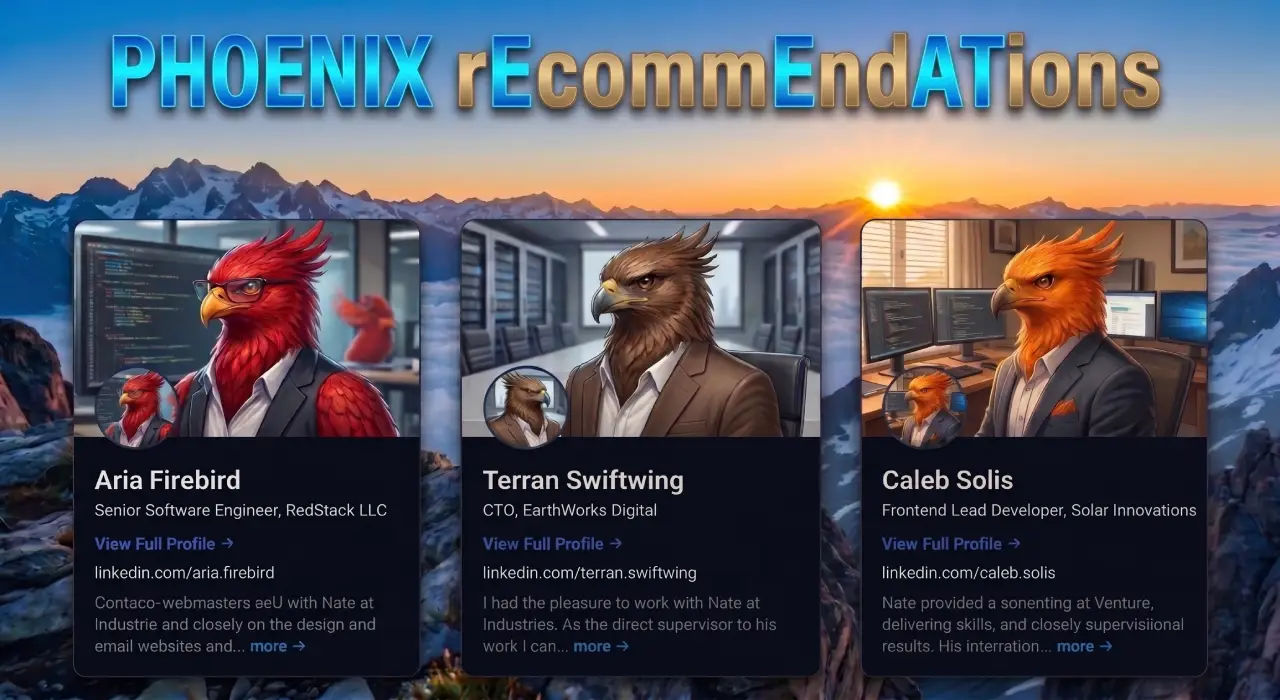
Phoenix rEcommEndATions
Automates E-E-A-T social proof with a zero-JS CSS marquee, native media uploader, and automated Review, Person, & Organization JSON-LD schemas.
Plugin Page →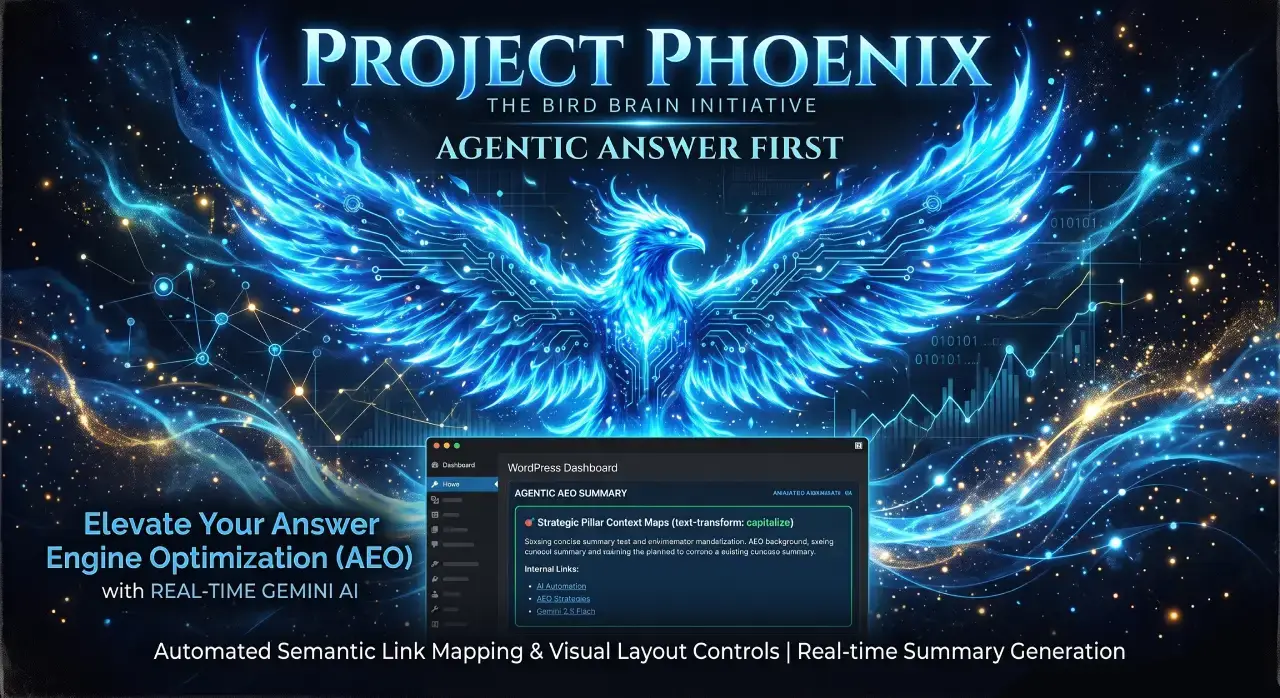
Phoenix Agentic Answer First
Dynamically adds Answer First paragraphs to posts for better LLM inclusion powered by real-time Gemini 2.5 Flash AEO summaries.
Plugin Page →
Phoenix Talon Nav
High-performance, isolated mobile navigation featuring hardware-accelerated drawer mechanics and autonomous AEO JSON-LD schema.
Plugin Page →
Phoenix E-E-A-T Author & Schema Engine
Generates enterprise-grade E-E-A-T author cards with dynamic Person JSON-LD Schema graphs to feed entity data to AI search engines.
Plugin Page →
Phoenix Topic Generator
Content ideation engine that dynamically monitors custom publications and targeted keywords to generate article ideas using Gemini.
Plugin Page →
Phoenix Hardened Hub Handshake
Enterprise-grade AI hub featuring Intelligent Entity Filtering, Content Negotiation, and a token-secured OpenAPI manifest.
Plugin Page →
Phoenix Sensor LLM Dashboard
Modular AEO Intelligence Platform tracking 24H LLM movement and percentage of site traffic originating from AI search agents.
Plugin Page →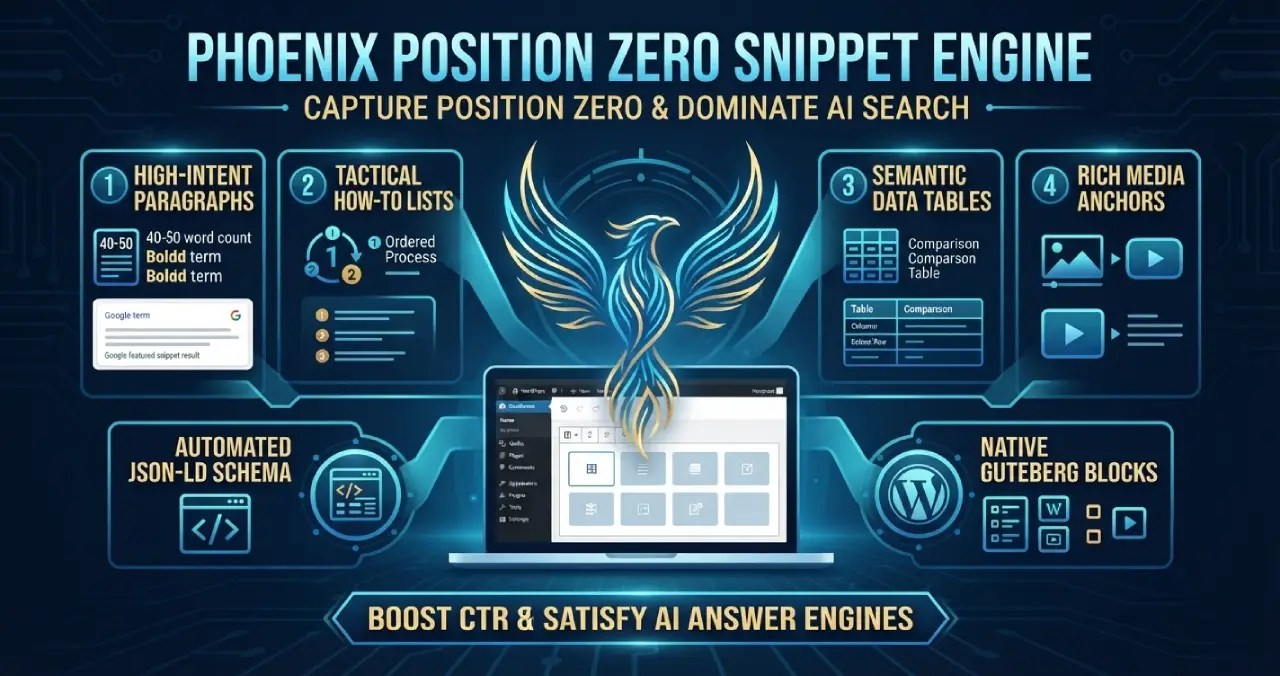
Phoenix Position Zero Snippet Engine
Engineered to optimize content structures for featured snippets, zero-click answer boxes, and direct LLM retrieval with automated JSON-LD.
Plugin Page →
Phoenix rEcommEndATions
Automates E-E-A-T social proof with a zero-JS CSS marquee, native media uploader, and automated Review, Person, & Organization JSON-LD schemas.
Plugin Page →
Phoenix Agentic Answer First
Dynamically adds Answer First paragraphs to posts for better LLM inclusion powered by real-time Gemini 2.5 Flash AEO summaries.
Plugin Page →
Phoenix Talon Nav
High-performance, isolated mobile navigation featuring hardware-accelerated drawer mechanics and autonomous AEO JSON-LD schema.
Plugin Page →
Phoenix E-E-A-T Author & Schema Engine
Generates enterprise-grade E-E-A-T author cards with dynamic Person JSON-LD Schema graphs to feed entity data to AI search engines.
Plugin Page →
Phoenix Topic Generator
Content ideation engine that dynamically monitors custom publications and targeted keywords to generate article ideas using Gemini.
Plugin Page →
Phoenix Hardened Hub Handshake
Enterprise-grade AI hub featuring Intelligent Entity Filtering, Content Negotiation, and a token-secured OpenAPI manifest.
Plugin Page →
Phoenix Sensor LLM Dashboard
Modular AEO Intelligence Platform tracking 24H LLM movement and percentage of site traffic originating from AI search agents.
Plugin Page →
Phoenix Position Zero Snippet Engine
Engineered to optimize content structures for featured snippets, zero-click answer boxes, and direct LLM retrieval with automated JSON-LD.
Plugin Page →High-Fidelity Build
Deploy lightning-fast, agentic web ecosystems with custom WordPress architecture. Built for performance, designed for conversion.