

Post at a Glance


Advanced Photoshop Filters
When it comes to digital design, few tools spark as much excitement as the sophisticated capabilities hidden within Adobe Photoshop. If you’re looking to elevate your workflow from basic edits to stunning, professional-grade visuals, “Using Advanced Photoshop Filters” is a game-changer. This comprehensive guide dives deep into the Filter menu’s most powerful features, transforming mundane images into captivating masterpieces.

As someone who’s spent countless hours experimenting with Photoshop’s arsenal, I can confidently say that using advanced Photoshop filters isn’t just a technique it’s an art form that unlocks endless possibilities. Whether you’re a seasoned editor or just dipping your toes into creative enhancements, this resource demystifies complex effects, making them accessible and fun to implement.
What sets “Advanced Photoshop Filters” apart is its focus on practical application. Rather than overwhelming you with theory, it emphasizes hands-on tutorials that guide you through real-world scenarios. From subtle retouches to dramatic artistic renders, Photoshop encourages experimentation while providing foolproof steps to achieve flawless results.
I’ve revisited my own projects after reading it, and the difference is night and day sharper details, richer textures, and effects that pop without looking over-processed. In this review, I’ll break down the key sections, share my favorite takeaways, and explain why incorporating using advanced Photoshop filters should be your next creative priority.
Exploring the Basics Before Diving into Advanced Photoshop Filters
Before we unleash the full potential of using advanced Photoshop filters, it’s essential to build a solid foundation. The guide starts here, reminding us that even pros benefit from a quick refresher on Photoshop’s core mechanics. Filters aren’t standalone magic; they interact with layers, blending modes, and smart objects in ways that amplify their impact. For instance, converting a layer to a Smart Object before applying any filter ensures non-destructive editing a tip that alone saves hours of frustration.
The introduction covers the Filter menu’s layout, from the straightforward Blur and Sharpen categories to the more whimsical Render and Artistic options. It stresses preparation: always duplicate your layer, adjust your foreground and background colors for optimal results, and allocate sufficient RAM to avoid crashes during intensive processes.
This groundwork is crucial because using advanced Photoshop filters can be memory-hungry, especially with effects like Gaussian Blur or Liquify. I appreciated how Photoshop uses simple analogies, like comparing filters to spices in a kitchen too much, and your dish is ruined; just right, and it’s gourmet.
One early exercise involves the Clouds filter under Render, which generates random patterns based on your color choices. It’s a playful entry point that demonstrates how even basic filters lay the groundwork for complexity. By the end of this chapter, you’ll feel confident navigating the menu, ready to tackle the advanced territory ahead. This section alone is worth the read, as it prevents common pitfalls that plague beginners venturing into using advanced Photoshop filters without guidance.
The Power of Smart Filters in Using Advanced Photoshop Filters
At the heart of “Using Advanced Photoshop Filters” lies its deep dive into Smart Filters, a non-destructive powerhouse that revolutionizes how we edit. Smart Filters allow you to apply effects like Oil Paint or Camera Raw adjustments without baking them into your pixels, meaning you can tweak, reorder, or delete them anytime. Photoshop excels here, with step-by-step walk throughs that show how to mask these filters for selective application paint over areas to reveal or hide effects, blending subtlety with boldness.
Take the Vanishing Point filter, for example. Traditionally tricky for perspective corrections, the guide simplifies it into a breeze: create a plane, clone across surfaces, and watch distortions vanish. I tested this on a architectural photo, and the results were seamless far better than manual warping. Another highlight is the integration with layer masks; by using gradients or brushes on the filter mask, you achieve feathered transitions that feel organic. This technique is a staple in using advanced Photoshop filters, turning flat images into dynamic compositions.
The chapter also explores blending modes within Smart Filters, like Overlay for enhanced contrast or Soft Light for dreamy atmospheres. These aren’t just add-ons; they’re integral to the creative process. As I worked through the tutorials, I found myself layering multiple Smart Filters starting with a base Diffuse Glow, then adding a subtle Texturizer on top. The flexibility is addictive, and Photoshop’s clear screenshots make replication effortless. If you’ve ever abandoned a filter because it felt too permanent, this section will change your mind about using advanced Photoshop filters forever.
Artistic and Sketch Filters in Using Advanced Photoshop Filters
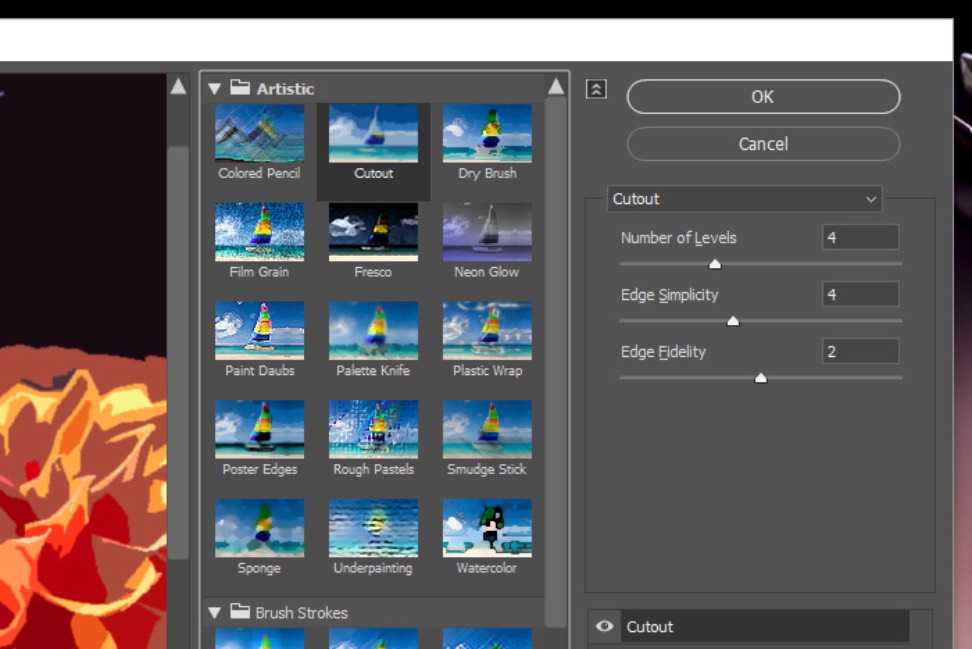
Nothing ignites creativity like the Artistic category, and “Using Advanced Photoshop Filters” dedicates a vibrant chapter to these gems. Filters like Watercolor, Dry Brush, and Colored Pencil mimic traditional media, bridging digital and analog worlds. The guide doesn’t stop at basics; it teaches advanced tweaks, such as combining Artistic filters with custom brushes for hybrid effects that look handcrafted.
One standout tutorial recreates an impressionist painting from a landscape photo. Start with the Palette Knife filter to roughen textures, then layer Smudge Stick for directional strokes adjust the direction slider to match brushwork flow.
Photoshop encourages stacking: apply an Artistic filter, then duplicate the layer and experiment with different styles. Blending modes tie it together multiply for depth, Screen for luminosity. These methods elevate using advanced Photoshop filters from gimmicks to professional techniques. By chapter’s end, you’ll have a portfolio of transformed images, each telling a unique story through stylized effects.
Distortions and Renders: Unleashing Chaos with Using Advanced Photoshop Filters
For those craving surrealism, the Distort and Render sections in “Using Advanced Photoshop Filters” are pure inspiration. The Liquify filter gets an in-depth treatment, with tools like Forward Warp and Twirl Clockwise demystified for everything from subtle body reshaping to whimsical dreamscapes. Advanced tips include freezing areas with the Freeze Mask tool to protect key elements, ensuring controlled chaos.
Render filters, meanwhile, add environmental drama Clouds for ethereal backgrounds, Lens Flare for cinematic glows, and Lighting Effects for moody spotlights. The guide’s pro tip: use the Flame renderer to create fiery overlays, then blend with Overlay mode for realistic infernos. I experimented with this on a product shot, adding subtle embers that made the image sizzle without overpowering the subject.
Using advanced Photoshop filters here transforms static visuals into narratives, like fog-shrouded mysteries via the Fibers filter.Customization is key; Photoshop shows how to load textures into filters like Texturizer or Displace, pulling from your own files for bespoke results. These chapters remind us that using advanced Photoshop filters isn’t about presets—it’s about personalization, yielding effects as unique as your vision.
Neural Filters: The AI Revolution in Using Advanced Photoshop Filters
The crown jewel of modern Photoshop is the Neural Filters workspace, and “Using Advanced Photoshop Filters” gives it the spotlight it deserves. Powered by Adobe Sensei, these AI-driven tools-like Smart Portrait for expression tweaks or Skin Smoothing for flawless complexions-redefine efficiency. The guide walks you through enabling the beta features, downloading filter packs, and fine-tuning outputs with sliders for age progression or gaze direction.
A favorite is the Style Transfer filter, which applies artistic styles from reference images in seconds. Apply it to a still life, select a Van Gogh preset, and voilà-swirling stars on your vase. For portraits, the Super Zoom restores details non-destructively, a boon for low-res sources. Using advanced Photoshop filters via Neural tech is seamless: they’re non-destructive by default, stacking like Smart Filters with easy previews.
Practical Projects: Hands-On with Using Advanced Photoshop Filters
Theory is fine, but practice seals the deal. “Using Advanced Photoshop Filters” shines in its project-based chapters, from composite collages to vintage posters. One builds a cyberpunk cityscape: start with Displacement Map for warped buildings, add Neon Glow via Render, then mask with Smart Filters for depth. Each project builds skills cumulatively, reinforcing using advanced Photoshop filters across genres.
Why Using Advanced Photoshop Filters is Essential
In wrapping up this review, “Using Advanced Photoshop Filters” isn’t just a book-it’s a catalyst for innovation. By repeating the mantra of mindful application, it empowers you to harness filters’ full spectrum, from subtle polishes to bold reinventions. I’ve counted over a dozen new techniques in my toolkit, each enhancing my efficiency and creativity. If you’re serious about Photoshop, grab this guide; it’ll transform how you see every pixel.
REQUEST WEB DESIGN OR SEO SERVICES
Looking for web design or SEO services? Fill out this short form and we’ll contact you to talk about your project needs. Help us understand your vision so we can deliver a tailored, user-friendly design that effectively represents your brand
Related Posts:




 | Web Design Services: Custom, responsive sites with stunning UX/UI, fast load times & SEO-ready code. Convert visitors into customers.More >> |
 | Search Engine Optimization Services: Boost your site's visibility with tailored keyword research, on-page optimization & analytics. Drive organic traffic!More >> |
 | WordPress Services: Custom themes, WooCommerce, speed & SEO optimization. Secure, scalable sites that rank higher & convert better.More >> |










Leave a Reply
You must be logged in to post a comment.