
Post at a Glance


I just boosted my PageSpeed Insight Scores to help streamline my site’s performance and reduce bounce backs. I haven’t scored all 100s…yet, but 3 out of 4 green ain’t to shabby. 🟢 🟠 🟢 🟢 I posted screenshots from Google PageSpeeds Insights after systematically going through this checklist.
Performance + Accessibility + Good Code + SEO + AEO = More Traffic. Better Traffic. Less Bounce backs. Better user retention. Conversion$ $$$.

Watch me boost my PageSpeed Insight scores from a failing 51% to a near perfect 97% in this 36 second time lapse vid.
7 Tips to Boost PageSpeed Insight Scores
Boost PageSpeed Insight scores with LiteSpeed Cache.(LSCache) is a powerful, free plugin for WordPress sites hosted on LiteSpeed servers. It excels at caching, minification, and optimization features that directly target PageSpeed Insights metrics like Largest Contentful Paint (LCP), Cumulative Layout Shift (CLS), and First Input Delay (FID).
By enabling the right settings, you can often achieve 90-100% scores on both mobile and desktop. Always test changes on a staging site first, purge caches after updates, and validate with PageSpeed Insights.
Prerequisites to Boost PageSpeed Insight Scores
- Server Compatibility: Ensure your host uses LiteSpeed Web Server (common with providers like Cirrius Business, A2 Hosting, SiteGround, or Hostinger). Check via your cPanel or contact support.
- Install the Plugin: In WordPress admin, go to Plugins > Add New, search for “LiteSpeed Cache,” install, and activate. Run the setup wizard to enable basic caching and optionally connect to QUIC.cloud (LiteSpeed’s CDN and optimization service—free tier available).
- Backup Your Site: Use a plugin like UpdraftPlus before tweaking settings.
- Start with a Preset: In LiteSpeed Cache > Presets, select the “Advanced” preset for a solid baseline.
Step-by-Step Configuration to Boost PageSpeed Insight Scores:
Access settings via LiteSpeed Cache in your WordPress sidebar. I’ll break it down by tab, focusing on high-impact options for PageSpeed. Enable features gradually and test for breakage (e.g., via Chrome DevTools console).

1st PSI Report: 🟠 51% | 🟠 88% | 🟢 96% 🤛 | 🟢 100% 💯 SEO Guy Here
1. Boost PageSpeed Insight Scores: General Settings


2nd PSI Report: 🟠 58%+7 | 🟠 88% | 🟢 96% | 🟢 100%
2. Cache Settings

These reduce server load and improve Time to First Byte (TTFB), a key PageSpeed factor.
| Setting | Recommended | Why It Helps PageSpeed Insight Scores |
|---|---|---|
| Cache Logged-in | OFF | Avoids cache bloat; focus on guest traffic (80% of visits). |
| Mobile Cache | ON | Ensures mobile-specific optimizations for PSI mobile tests. |
| Object Cache | Redis, 360s TTL | Reduces DB queries, lowering LCP. |
3. Page Optimization
This tab is your powerhouse for eliminating render-blocking resources and reducing file sizes directly targeting “Eliminate render-blocking resources” and “Reduce unused CSS/JS” diagnostics.
CSS Sub-Tab:
JS Sub-Tab:
HTML Sub-Tab:
Media Sub-Tab (for Lazy Loading):
| Optimization | Recommended | PageSpeed Impact |
|---|---|---|
| CSS Minify/Combine + UCSS | ON | Cuts render-blocking CSS; reduces unused code. |
| JS Deferred (Delay) | ON | Defers non-critical JS, improving FID. |
| Lazy Load Images | ON | Lowers initial payload; fixes “Defer offscreen images.” |
4. Image Optimization
Images often cause 50%+ of page weight—optimize to crush “Serve images in next-gen formats” and “Properly size images.”
Exclude hero images from lazy loading in Media Excludes to avoid LCP delays.

3rd PSI Report: 🟠 75%+17 | 🟠 85%-3 | 🟢 96% | 🟢 100%
5. CDN (QUIC.cloud Recommended)

6. Database & Crawler
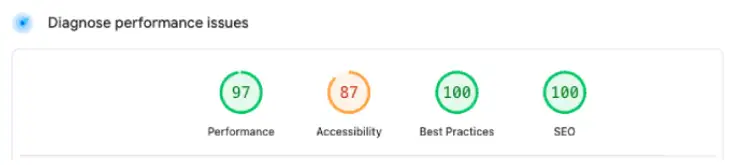
4th PSI Report: 🟢 97%+22 🤛🤛 | 🟠 87%+2 🤛 | 🟢 100%+4 🤛 | 🟢 100% 🤛
7. Toolbox
Testing and Fine-Tuning for PageSpeed Insights
- Purge Caches: In Toolbox > Purge All (and QUIC.cloud cache if using CDN).
- Run Tests: Analyze your homepage and key pages on PageSpeed Insights (mobile first). Aim for:
- LCP < 2.5s: Prioritize VPI and image WebP.
- CLS < 0.1: Use Add Missing Sizes and Critical CSS.
- FID < 100ms: JS Delay + minification.
- Debug Issues:
- Layout shifts? Disable CSS Combine and add exclusions.
- JS errors? Exclude files in Tuning (e.g., elementor-pro.js).
- Use GTmetrix or WebPageTest for deeper waterfalls.
- Advanced Tips:
- Integrate Perfmatters plugin for per-page exclusions and local Google Analytics.
- Host fonts locally (OMGF plugin) and preload LCP images.
- Monitor QUIC.cloud quota (free tier: 1GB/month for images/CSS).
- For 100% scores, combine with theme tweaks (e.g., remove unused plugins).
Boost PageSpeed Insight Scores for Better Traffic
Following these should yield significant gains many users report 20-40 point jumps. If your site uses builders like Elementor, exclude their assets first to avoid conflicts.
For official docs, check LiteSpeed’s guide. If issues persist, share your PageSpeed report for tailored advice!
Related Posts: