

Post at a Glance


When it comes to digital marketing and website management, understanding user behavior is crucial for success. This Google Analytics 4 Tutorial serves as your comprehensive guide to harnessing the full potential of Google’s latest analytics platform. Whether you’re a beginner looking to set up your first property or an experienced user aiming to refine your data analysis, this article breaks down everything you need to know in 21 essential steps. With a focus on practical implementation, we’ll cover setup, navigation, key features, integrations, best practices, and troubleshooting, all updated for 2026.
Google Analytics 4, often abbreviated as GA4, represents a significant shift from its predecessor, Universal Analytics. It emphasizes event-based tracking, cross-device measurement, and privacy-centric data collection, making it ideal for today’s multi-platform user journeys. As of 2026, GA4 has incorporated advanced AI-driven insights, enhanced budgeting tools for cross-channel campaigns, and improved integration with tools like BigQuery and Google Ads. This tutorial draws from official Google resources and expert insights to ensure accuracy and relevance.
Before diving in, note that GA4 requires a Google account to get started. If you don’t have one, create it at accounts.google.com. Now, let’s explore the 21 steps that will transform how you analyze data.
Steps for Getting Started with GA4
What is Google Analytics 4?
Google Analytics 4 is the next-generation analytics solution from Google, designed to provide deeper insights into user interactions across websites and apps. Unlike Universal Analytics, which relied on session-based data, GA4 uses an event-based model that captures every user action as an event, offering more flexibility and accuracy in tracking.
Key differences include machine learning-powered predictive metrics, such as potential revenue from audiences, and built-in privacy controls to comply with regulations like GDPR and CCPA. In 2026, new features like generated insights on the home page summarize top data changes, helping you spot anomalies quickly.
Why switch to GA4? It future-proofs your analytics by focusing on user-centric measurement, essential for personalized marketing strategies. According to Google’s updates, GA4 now supports cross-channel budgeting in beta, allowing you to optimize paid investments across platforms.
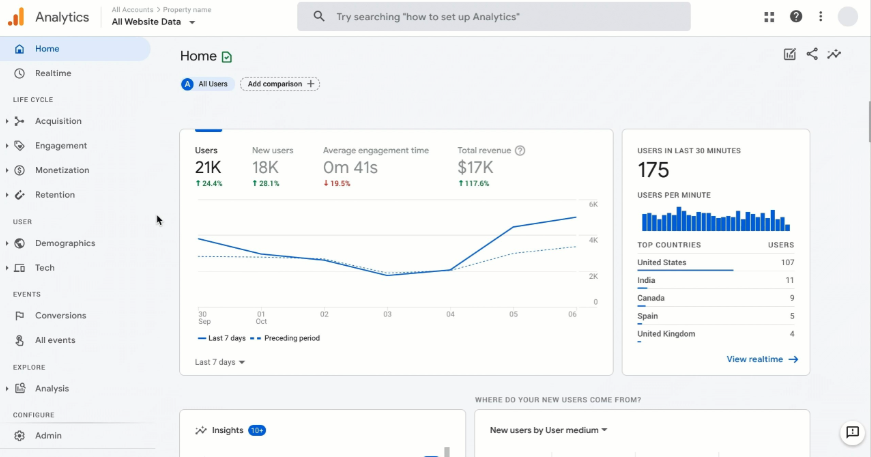
Google Analytics 4 Tutorial: Getting Started
This section of the Google Analytics 4 Tutorial focuses on the foundational steps to set up your account and property. Proper setup ensures accurate data collection from day one.
Step 1: Create a Google Analytics Account
Head to analytics.google.com and click “Start measuring” if it’s your first time. Sign in with your Google account. Enter your account name, typically your business name, and configure data-sharing settings. Opt-in for personalized features to leverage Google’s machine learning.
Step 2: Set Up a GA4 Property
Head to analytics.google.com and click “Start measuring” if it’s your first time. Sign in with your Google account. Enter your account name, typically your business name, and configure data-sharing settings. Opt-in for personalized features to leverage Google’s machine learning.
Step 3: Add a Data Stream
Data streams collect information from your sources. For websites, select “Web” and input your site URL. Enable enhanced measurement to automatically track events like page views, scrolls, and outbound clicks without extra code.
Step 4: Install the GA4 Tag
Use Google Tag Manager (GTM) for advanced implementations or add the gtag.js script directly to your site’s header. In GTM, create a new tag with type “Google Analytics: GA4 Configuration,” paste your measurement ID, and trigger it on all pages.
For WordPress users, plugins like Site Kit by Google simplify this process. Verify installation by checking real-time reports for incoming data.
Step 5: Configure Data Retention and Privacy Settings
Navigate to “Data Settings” in the admin panel. Set event data retention to 14 months (the maximum for free accounts) to preserve historical data for analysis. Enable Google signals for cross-device tracking while ensuring compliance with consent modes for regions with strict privacy laws.In this Google Analytics 4 Tutorial, remember that privacy is paramount; mis-configurations can lead to data gaps or legal issues.
Google Analytics 4 Tutorial: Navigating the Interface
Mastering the GA4 interface is key to extracting actionable insights. This part of the Google Analytics 4 Tutorial walks you through the main sections.
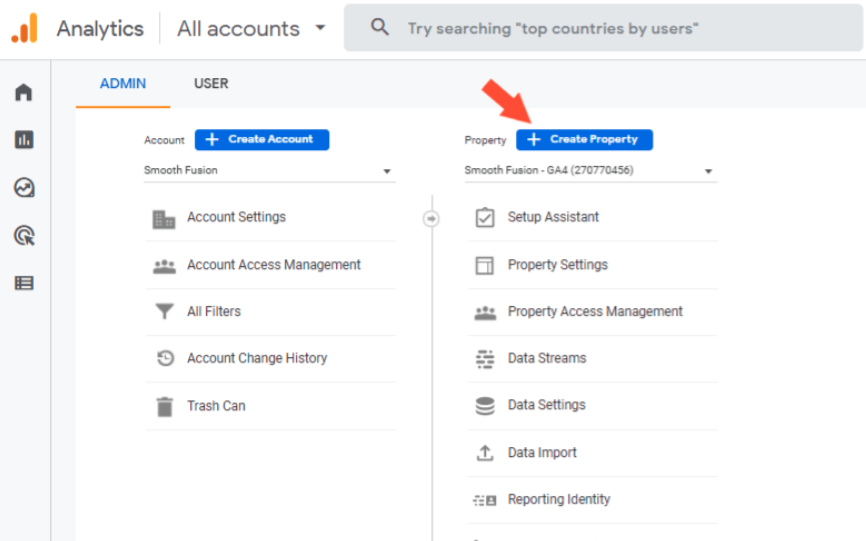
This screenshot illustrates the property creation interface in GA4.
Step 6: Explore the Home Page
The home page provides an overview with cards showing users, new users, average engagement time, and revenue. In 2026, look for the new “Generated insights” section that highlights top changes since your last visit, including anomalies and trends.
Step 7: Use the Reports Snapshot
Click “Reports” on the left menu for life cycle reports: Acquisition (how users find you), Engagement (what they do), Monetization (e-commerce data), and Retention (return rates). Customize by adding comparisons, like organic vs. paid traffic.
Step 8: Dive into Real-time Reports
Real-time shows active users, top pages, and events happening now. Use it to monitor campaign launches or site issues instantly.
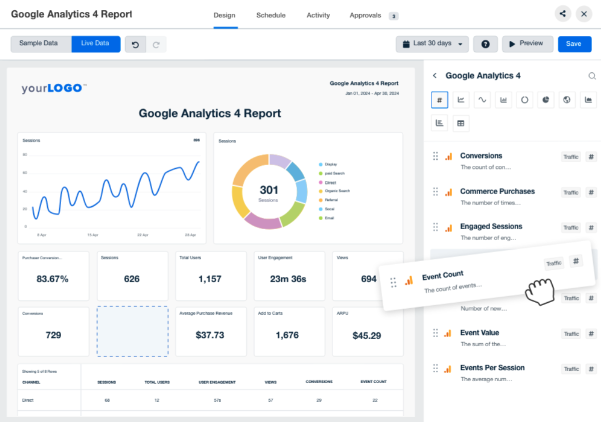
Here’s an example of a customized GA4 report dashboard.
Step 9: Customize Reports with Explorations
Explorations allow free-form analysis. Create funnel explorations to visualize user drop-offs or path explorations to see navigation sequences. Add segments for deeper segmentation, like comparing mobile vs. desktop users.
In explorations, you can apply filters and build cohorts for predictive audiences.
👉 Google Analytics 4 Tutorial for Beginners
Understanding Key Metrics and Reports
GA4 introduces new metrics like engaged sessions (sessions lasting over 10 seconds or with conversions/events) and average engagement time. Track these to gauge content quality.
For acquisition reports, focus on user acquisition (first-touch) vs. traffic acquisition (session-based). Engagement reports detail events per session and views per user.
Monetization is vital for e-commerce: track transactions, revenue, and average order value. Retention reports show user return rates over time.To optimize, use the insights hub for AI-generated suggestions, such as “Traffic from organic search increased by 20% this week.”
Google Analytics 4 Tutorial: Setting Up Events and Conversions
Events are the core of GA4. This Google Analytics 4 Tutorial section explains how to track and convert them into meaningful data.
Step 10: Understand Automatic and Recommended Events
GA4 automatically tracks page_view, session_start, and first_visit. Recommended events include view_search_results for sites with search functions or purchase for e-commerce.
Step 11: Create Custom Events
In the admin panel, go to “Events” > “Create event.” Define parameters like event_name (e.g., button_click) and conditions. Use GTM to trigger custom events, such as form submissions.
Step 12: Mark Events as Conversions
Up to 30 conversions per property. Toggle “Mark as conversion” for key events like sign_up or add_to_cart. This populates conversion reports and enables bidding in Google Ads.
Step 13: Set Up E-commerce Tracking
For online stores, enable enhanced e-commerce in data streams. Track events like view_item, add_to_cart, and purchase with parameters for item_id, price, and quantity.
Monitor in Monetization reports for revenue attribution.
Building and Managing Audiences
Audiences segment users for re-marketing. Create them based on demographics, behavior, or predictions like “Likely 7-day purchasers.”
Step 14: Create Audiences
In “Configure” > “Audiences,” build new ones using conditions like users who viewed a page but didn’t convert. Integrate with Google Ads for targeted campaigns.
Predictive audiences use machine learning to forecast high-value users.
Step 15: Link to Google Ads
In admin, select “Google Ads links.” This imports conversions for better bidding and performance max campaigns.
Step 16: Connect to BigQuery
For advanced analysis, export raw data to BigQuery. Free for standard properties, enabling SQL queries on large datasets.
Step 17: Integrate with Search Console
Link to see organic search queries in GA4 reports, combining SEO data with user behavior.
Other integrations include Salesforce for CRM data or third-party tools like Looker Studio for visualizations.
Best Practices for GA4 in 2026
To maximize value, follow these expert-recommended practices.
Step 18: Audit Your Setup Regularly
Check for duplicate events or missing tags. Use debug mode in GTM to verify tracking.
Step 19: Use Segments and Comparisons
In reports, add comparisons to contrast data subsets, like new vs. returning users.
Step 20: Leverage AI Features
Enable predictive metrics and anomaly detection. Use cross-channel budgeting to allocate ad spend efficiently.
Step 21: Monitor Privacy and Compliance
Regularly review consent settings and data filters to exclude internal traffic.In this Google Analytics 4 Tutorial, implementing these steps ensures robust analytics.
Common Issues and Troubleshooting
Even with careful setup, issues arise. Common problems include data discrepancies between GA4 and Google Ads, often due to attribution model differences. Solution: Align models to data-driven attribution.
Another issue: Inaccurate today’s data reporting because of processing delays. Wait 24-48 hours for complete data.
For tracking gaps, check browser extensions blocking scripts. Use server-side tagging via GTM to bypass.
Duplicate events? Audit tags for overlaps. If conversions don’t match, verify event parameters and import settings.
Advanced Techniques
Beyond basics, explore user properties for custom dimensions like membership level. Set up custom definitions in admin for up to 25 user-scoped dimensions.
Use the analysis hub for cohort analysis, predicting user lifetime value.For mobile apps, add app streams and track in-app events similarly.In 2026, utilize the new beta features like cross-channel budgeting to track ROI across paid channels.
In Summation
This Google Analytics 4 Tutorial has equipped you with 21 essential steps to master GA4, from setup to advanced optimizations. By implementing these, you’ll gain deeper insights into user behavior, improve marketing ROI, and stay compliant with privacy standards. Remember, consistent monitoring and iteration are key; revisit your setup quarterly.
For further learning, check Google’s Analytics Academy or YouTube tutorials. Start applying this Google Analytics 4 Tutorial today to elevate your data game.

 | Web Design Services: Custom, responsive sites with stunning UX/UI, fast load times & SEO-ready code. Convert visitors into customers.More >> |
 | Search Engine Optimization Services: Boost your site's visibility with tailored keyword research, on-page optimization & analytics. Drive organic traffic!More >> |
 | WordPress Services: Custom themes, WooCommerce, speed & SEO optimization. Secure, scalable sites that rank higher & convert better.More >> |