
Website speed is crucial for user satisfaction and search engine rankings. If you’re wondering how to optimize images for page speed insights, you’re in the right place. This guide will walk you through proven strategies to make your images lighter and faster, directly improving your Google PageSpeed Insights scores.
Images often account for the bulk of a page’s byte size, sometimes up to 60% or more. By optimizing them, you can reduce load times, enhance Core Web Vitals like Largest Contentful Paint (LCP), and boost overall performance. As an SEO expert, I’ve seen sites jump from poor to excellent scores simply by applying these techniques.
This article draws from the latest 2026 best practices, including updates from Google’s documentation and tools like ImageMagick. We’ll cover everything from basic compression to advanced implementations, ensuring your content is both visually appealing and speedy.
10 Steps to Optimize Images for Page Speed Insights
Why You Should Optimize Images for Page Speed Insights
Website performance directly impacts user experience. Slow-loading pages lead to higher bounce rates, with studies showing that a one-second delay can reduce conversions by 7%. Page Speed Insights, Google’s free tool, analyzes your site and highlights opportunities, often flagging images as a key area for improvement.
Optimizing images reduces file sizes without sacrificing quality, leading to faster downloads. This is especially important in 2026, where mobile usage dominates and networks vary in reliability. Better scores in Page Speed Insights also signal to search engines that your site is user-friendly, potentially improving rankings.
Moreover, optimize images for Page Speed Insights save bandwidth for users and servers, lowering hosting costs. For e-commerce sites, quicker loads mean more sales, as shoppers abandon carts on sluggish pages. Internal links to related topics, like our guide on CSS optimization, can further enhance your site’s structure.
External resources, such as Google’s PageSpeed Insights documentation, provide benchmarks. Following these ensures compliance with modern web standards.
Understanding Page Speed Insights and Image Impact
Page Speed Insights evaluates your site’s performance on mobile and desktop, scoring from 0 to 100. Images heavily influence metrics like LCP, which measures how long it takes for the main content to appear.
Un-optimized images cause delays because browsers must download large files before rendering. For instance, a 2MB image on a slow connection could add seconds to load time. In 2026, with AI-driven content creation, images are more prevalent, making optimization essential.
To see the impact, run your site through the tool. It might suggest compressing images or using next-gen formats. Addressing these can elevate your score from yellow (50-89) to green (90+).
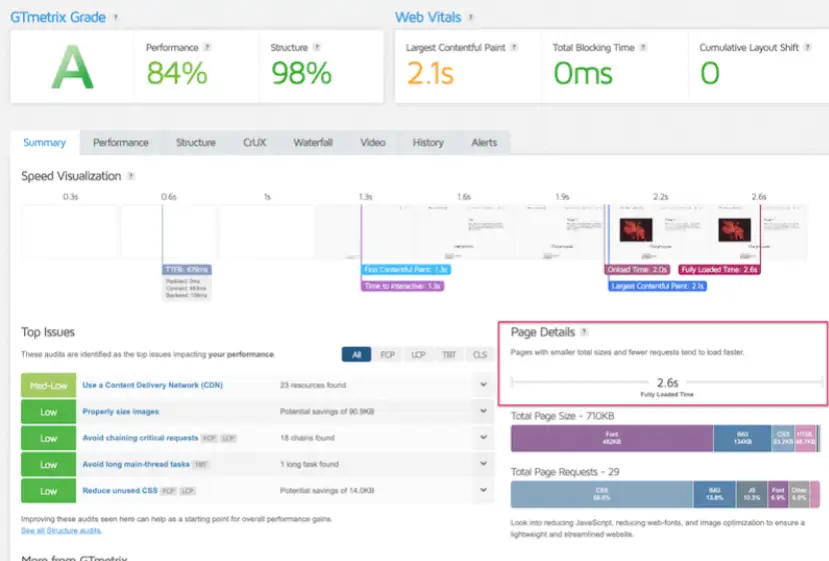
This before-and-after comparison illustrates how optimization slashes load times.
Step 1: Choose the Right Image Format
Selecting the appropriate format is foundational in how to optimize images for page speed insights. Common options include JPEG, PNG, GIF, WebP, and AVIF.
JPEG suits photos with gradients, offering lossy compression that reduces size by discarding minor details. Aim for quality levels of 70-85 to balance size and visuals.
PNG is ideal for graphics with transparency or sharp edges, like logos. It uses lossless compression, preserving quality but often resulting in larger files than JPEG.
GIF works for simple animations, but convert non-animated ones to PNG for better efficiency.
In 2026, next-gen formats like WebP and AVIF are recommended. WebP reduces sizes by 25-34% compared to JPEG/PNG, while AVIF offers even more, up to 50%. Browsers widely support them now.
Tools like Adobe Photoshop or online converters help switch formats. For example, using ImageMagick: convert input.jpg -quality 85 output.webp.
Always test compatibility, as older browsers might need fallbacks.
Step 2: Compress Images Effectively
Compression shrinks file sizes, a core aspect of how to optimize images for page speed insights. Lossless compression removes redundant data without quality loss, while lossy discards some for greater reductions.
Start with tools like TinyPNG, which intelligently compresses PNG and JPEG files.
As shown, TinyPNG’s interface is user-friendly for bulk uploads.ImageOptim for Mac or Caesium for Windows provide desktop options. For web devs, integrate libraries like Sharp in Node.js.
Aim for 50-70% size reduction. Google’s PageSpeed Insights often compresses images further, suggesting downloads of optimized versions.
Remember, over-compression causes artifacts, so preview changes.
Step 3: Resize Images Properly
Serving oversized images wastes resources. Resize to match display dimensions, a key in how to optimize images for page speed insights.If an image displays at 500×300 pixels, don’t upload a 2000×1200 version. Use tools like GIMP or Photoshop to scale down.
In code, specify width and height attributes:
<img src="image.jpg" width="500" height="300" alt="Optimize Images for Page Speed Insights">.This prevents layout shifts, improving Cumulative Layout Shift (CLS) scores.
For WordPress, plugins like Smush auto-resize on upload.Check viewport sizes with responsive design tools.
Step 4: Implement Responsive Images
Devices vary, so use srcset and sizes attributes for responsive delivery.
Example:
<img srcset="small.jpg 480w, medium.jpg 768w, large.jpg 1024w" sizes="(max-width: 480px) 480px, (max-width: 768px) 768px, 1024px" src="medium.jpg" alt="Optimize Images for Page Speed Insights">This serves appropriate sizes, reducing data on mobiles.
Picture element allows format fallbacks:
<picture><source srcset="image.avif" type="image/avif"><source srcset="image.webp" type="image/webp"><img src="image.jpg" alt="Optimize Images for Page Speed Insights"></picture>This technique is vital for 2026’s multi-device landscape.
Step 5: Use Lazy Loading
Lazy loading defers off-screen images until needed, speeding initial loads.
Add loading=”lazy” to img tags:
<img src="image.jpg" loading="lazy" alt="Optimize Images for Page Speed Insights">Browsers support this natively since Chrome 76.
For older ones, use JavaScript libraries like lazysizes.
This improves LCP by prioritizing visible content.
In Page Speed Insights, it addresses “Defer offscreen images” opportunities.Combine with placeholders for smooth UX.
Step 6: Leverage Next-Gen Formats
As mentioned, WebP and AVIF are game-changers.
Convert with tools like Squoosh.app, Google’s online compressor.
In CMS like WordPress, plugins like WebP Express handle automatic conversion.
Benefits include smaller sizes with comparable quality.
Page Speed Insights flags legacy formats, urging switches.
Test browser support with caniuse.com.
Step 7: Remove Unnecessary Metadata
Images carry EXIF data like camera settings, bloating sizes.
Strip with ImageMagick: convert input.jpg -strip output.jpg.Online tools like Verexif do this quickly.
This can shave 10-20% off file sizes.
Essential for privacy too, removing location data.
Step 8: Optimize for CDNs
Content Delivery Networks cache images globally.
Services like Cloudflare or Amazon CloudFront compress on-the-fly.
Enable image polishing in Cloudflare for automatic optimization.
This reduces latency, improving global Page Speed Insights scores.
Integrate with your hosting for seamless delivery.
Step 9: Test and Monitor Performance
After optimizations, re-run Page Speed Insights.
Use GTmetrix or WebPageTest for deeper insights.
Monitor with Google Analytics for real-user metrics.
Set up alerts for regressions.
Regular audits keep scores high.
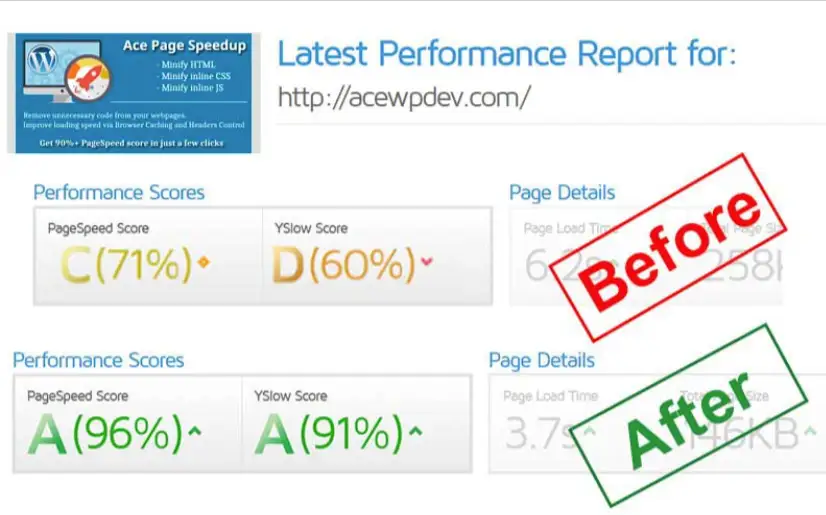
This screenshot shows dramatic before-and-after improvements.
Step 10: Advanced Tips for Developers
For coders, automate with build tools like webpack-imagemin-plugin.
Use AVIF for high-compression needs.
Implement client hints for device-specific delivery.
Optimize SVGs by minifying code.
These elevate how to optimize images for page speed insights to pro levels.
Case Studies: Real-World Success
Consider a blog site that optimized images, reducing average size from 500KB to 100KB. Page Speed Insights score rose from 65 to 95, with LCP dropping from 4s to 1.5s. Traffic increased 20% due to better rankings.
An e-commerce platform switched to WebP, cutting load times by 30%. Conversions improved 15%.
From Reddit discussions, developers report similar gains with lazy loading.These examples highlight practical benefits.
Visualize the speed boost in this comparison.
Common Mistakes to Avoid
Don’t ignore alt text; it aids SEO and accessibility.
Avoid uploading raw camera files; always process first.
Skipping tests leads to sub-optimal results.
Over-relying on plugins without manual checks can backfire.
Not updating for new formats misses opportunities.
FAQs
What tools are best for how to optimize images for Page Speed Insights?
TinyPNG, ImageOptim, and Squoosh are top choices. For automation, use WordPress plugins like Imagify.
How much can optimization improve scores?
Typically 10-30 points, depending on initial state.
Is AVIF better than WebP?
Yes, for compression, but check support.
Should I optimize all images?
Yes, but prioritize above-the-fold ones.
How often to re-optimize?
After major updates or new content additions.
Take Aways for Optimize Images for Page Speed Insights
Mastering how to optimize images for page speed insights transforms your site’s performance. By following these 10 steps, you’ll achieve faster loads, happier users, and better SEO. Start with a audit today, and watch your scores soar.
For more tips, check our internal post on web design trends. External guide: Cloudinary’s optimization tips.

 |
Web Design Services: Custom, responsive sites with stunning UX/UI, fast load times & SEO-ready code. Convert visitors into customers. More >> |
 |
Search Engine Optimization Services: Boost your site's visibility with tailored keyword research, on-page optimization & analytics. Drive organic traffic! More >> |
 |
WordPress Services: Custom themes, WooCommerce, speed & SEO optimization. Secure, scalable sites that rank higher & convert better. More >> |