


A sudden spike in 404 errors in Search Console demands a strategic AEO approach, impacting user experience and AI search crawl budget. This guide demystifies causes, from CMS updates to bot probing, and outlines diagnosis. Learn to manage 404s, implement proper redirects, and design effective error pages to transform technical headaches into an AEO advantage, ensuring optimal indexation and user retention for modern search.
Strategic Pillar Context Maps
Seeing a sudden spike in 404 errors search console can make even the most seasoned SEO professional spill their morning coffee. You log into your dashboard, check the Page Indexing report, and suddenly there is a massive wall of red warning you about thousands of “Not Found (404)” pages. Your first instinct is probably panic. Your second instinct is likely a rush to redirect everything to the homepage. Take a breath and step away from the automated redirect plugins.
I am Nate Balcom. I do not just design websites. I develop them, I create the content for them, and I engineer their AI search strategies. I am a UX professional who writes code and an SEO specialist who knows how to promote. Because I handle tasks normally spread across an entire agency team, I look at website errors through a unique lens. A 404 error is not just a search engine optimization problem. It is a user experience problem, a server architecture issue, and a potential conversion killer.
In this guide, we are going to break down exactly why this happens, how to diagnose the root cause, and how to turn a technical headache into a strategic advantage.
Sudden Spike in 404 Errors Search Console Contents
Why a Sudden Spike in 404 Errors Search Console Happens

Before you can fix the problem, you have to understand the source. Where did these 404 URLs come from if you never published or deleted them in the first place? Websites are dynamic ecosystems. Sometimes, the errors are your fault. Other times, they are a byproduct of how modern search engine crawlers behave.
Did a CMS Update Break Your Permalinks?
One of the most common reasons for a massive influx of dead links is a recent change to your site architecture. Did a recent theme deployment, CMS plugin update, or taxonomy change strip URL prefixes and break permalinks? If you recently removed the “/category/” base from your WordPress blog URLs without implementing proper database rewrites, Googlebot will suddenly find that every single category link it previously indexed now returns a 404 status. The pages still exist, but their addresses changed overnight.
Are Bots Probing Your Server?
Are scrapers, vulnerability scanners, or malicious bots probing non-existent paths on your server? Often, you will look at your report and see strange URLs ending in /wp-login.php, /.env, or /setup.php. These are not pages you created. These are automated bots looking for security vulnerabilities. When Googlebot crawls the web, it sometimes follows the footprints left by these malicious scanners. When Google tries to fetch those fake URLs, your server correctly returns a 404. This is actually a good thing. It means your server is secure and responding properly.
Parameter and Tracking Tag Nightmares
Why is Google Search Console reporting 404 errors on URLs with query parameters or tracking tags? Marketing teams love to append UTM parameters to URLs for campaign tracking. Sometimes, a poorly configured script or a broken third party tool will generate infinite variations of a URL (like /services/?sort=price&filter=blue). If your canonical tags are missing or broken, Googlebot will attempt to crawl every single variation. If your server does not recognize those parameters, it throws a 404.
Bad XML Sitemaps
Did an outdated or corrupted XML sitemap submit dead URLs directly to Googlebot? Your XML sitemap is a direct roadmap for search engines. If you delete a batch of outdated blog posts but your caching plugin continues to serve an old version of your sitemap, you are literally handing Google a list of dead links and asking them to crawl them. This is a guaranteed way to trigger a spike in your error reports.
Internal vs External 404 Errors
How do you tell if the 404 errors are caused by broken internal links or external backlinks? The easiest way is to inspect the URL in Search Console. The inspection tool will show you the referring page. If the referring page is on your own domain, you have a broken internal link that needs immediate fixing. If the referring page is external, you have a broken backlink.
If you want to get highly technical, you need to bypass Search Console entirely. How do you download and analyze server log files to see how Googlebot is discovering these 404s? By pulling the raw access logs from your web host, you can filter for “Googlebot” and “HTTP 404”. This reveals the exact crawl path and timestamp, showing you precisely which broken links are wasting your crawl budget in real time.
The True Impact of a Sudden Spike in 404 Errors Search Console on Your SEO

There is a lot of misinformation surrounding dead links. Let us clear up the facts so you can explain them confidently to your clients or stakeholders.
Will This Hurt My Rankings?
Will a sudden spike in 404 errors hurt my site’s organic rankings or domain authority? The short answer is no. Google has explicitly stated that 404 errors are a normal part of the internet. Does Google penalize a domain for having a high volume of 404 URLs? Absolutely not. There is no manual or algorithmic penalty simply for having dead pages. If you delete a page that has no traffic and no backlinks, allowing it to 404 is the correct technical move.
The Crawl Budget Threat
However, there is a catch. Will thousands of sudden 404 errors consume your crawl budget and prevent new pages from getting indexed? Yes. Crawl budget is the amount of time and resources Google allocates to crawling your site. If Googlebot spends 80 percent of its time chasing down infinite parameter loops or broken category tags, it has no time left to discover the amazing new 2000 word blog post you just published. Over time, this leads to indexation delays.
The Traffic and UX Problem
Are these 404 errors causing an immediate drop in organic impressions and click-through rates? If the URLs returning 404s were previously ranking on page one of Google, then yes, your traffic will plummet. When a user clicks a search result and hits a dead page, they immediately click the back button. Google registers this poor user experience, and the page is swiftly removed from the search index.
Soft 404s vs Hard 404s
What is the difference between a clean 404 error and a “Soft 404” in Search Console, and which one hurts rankings? A clean, or hard, 404 is when the server officially tells the browser “this page is gone” using an HTTP 404 status code. A Soft 404 is a critical failure. It happens when a page says “Not Found” on the screen, but the server secretly returns a “200 OK” status code to the search engine. Google hates Soft 404s because they waste resources indexing useless content. Soft 404s will actively harm your site quality scores.
Diagnosing Your Sudden Spike in 404 Errors Search Console

Now that we know the causes and impacts, we need to fix the problem. This requires a mix of technical SEO, server knowledge, and user experience design.
The Homepage Redirect Trap
Should you redirect all these 404 URLs to the homepage using an automated redirect plugin? Absolutely never. This is a rookie mistake that causes massive damage. Redirecting thousands of unrelated dead URLs to your homepage creates a terrible user experience. Imagine a user clicking a link for “red running shoes” and landing on a generic corporate homepage. They will bounce immediately. Furthermore, Google treats irrelevant redirects as Soft 404s. You lose the link equity anyway, and you annoy your users.
Knowing When to Redirect
When should you implement a 301 redirect versus letting a URL return a natural 404 status? The rule is simple. You only use a 301 permanent redirect if an equivalent replacement page exists. If you delete a product because it is out of stock, but you have a newer model of that exact same product, 301 redirect to the new model. If you delete a 10 year old blog post about outdated software and have nothing related to replace it with, let it 404.
If an external high authority website is linking to a 404 page, how do you recover that link equity? This is the one exception where you must get creative. If Forbes links to a dead page on your site, you cannot afford to lose that PageRank. Find the most topically relevant page on your site (even if it is a broad category page) and implement a 301 redirect.
The HTTP 410 Strategy
When is it better to return HTTP 410 (Gone) instead of HTTP 404 (Not Found)? An HTTP 404 means “I cannot find this right now.” Googlebot is stubborn. It will come back and check a 404 page repeatedly for months just in case it was a temporary server glitch. An HTTP 410 explicitly means “This is gone forever and it is never coming back.” If you do a massive content audit and intentionally delete 500 low quality blog posts, serving a 410 status code tells Googlebot to drop those URLs from the index immediately, saving you massive amounts of crawl budget.
As a technical SEO and web developer, I structure these server responses directly at the architecture level. This is exactly why fast websites drive more traffic and higher sales. Clean server responses mean faster crawling and better indexation.
Fixing the Internal Bleeding
How do you identify which live internal pages contain links pointing to these 404 errors? You cannot rely on Search Console alone for this. You need to run a full site crawl using a tool like Screaming Frog. This will map your entire site architecture and highlight exactly which blog posts or navigation menus are linking to dead pages. You must go into your CMS and manually update or remove those broken links. Internal links are the veins of your website. If they are broken, link equity cannot flow.
Designing the Ultimate 404 Error Page
If a page must truly die, the user experience does not have to die with it. As a UX professional, I treat the 404 page as a strategic retention tool rather than a dead end.
What elements should be on a custom 404 error page to prevent human visitors from bouncing immediately?
- First Go Home: Make sure to add a link back to your home page. The page they were looking for may have moved or been removed. The ultimate fallback should be to your homepage that should be the best summary of just what your website is and or does.
- Second Search Bar: A good 404 page must include a prominent search bar so the user can find what the visitor was actually looking for. If a visitor found your site, but not what the subject they searched they should have the option to look for what they typed into Google initially. Give them an option of how to proceed.
- Third Brand Personality: My own 404 page features a custom illustration of my Blue Phoenix S. Thompson, with the quote “WE CANT STOP HERE. THIS IS BAT COUNTRY”. It is funny, it is memorable, and it defuses the user’s frustration instantly.
- Fourth Dynamic Content Injection: I include a dynamic, auto updating list of my top three performing articles right on the error page. Instead of leaving the site, the user clicks into high value content. As these are the top performing articles, chances are they may have searched for one of these that moved.
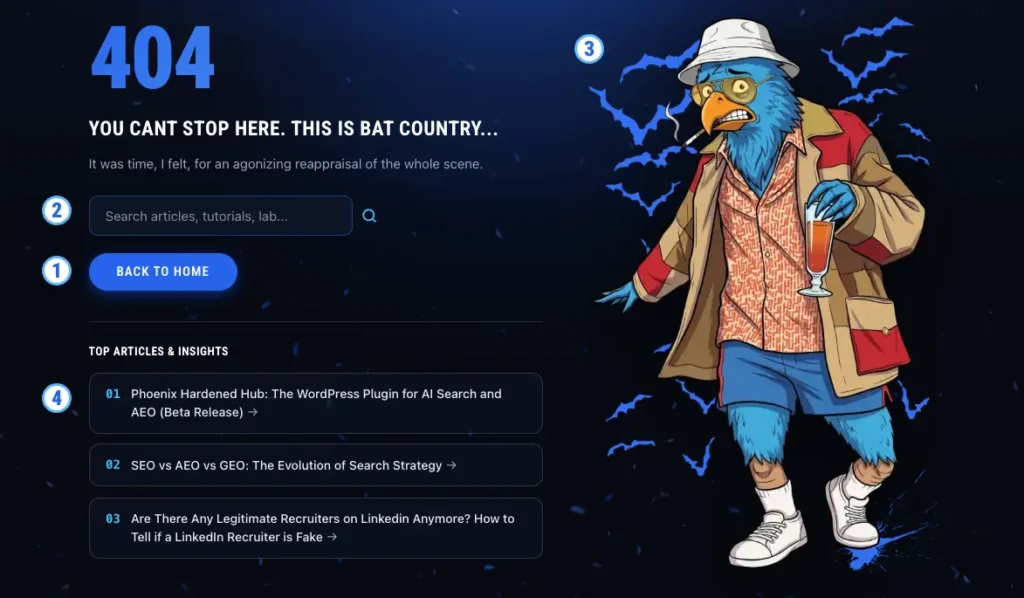
Finally, you must ensure the technical foundation is flawless. Is your custom 404 template actually returning a 404 Not Found server header, or is it accidentally returning a 200 OK status? You must verify your HTTP headers using a developer tool network tab to ensure your clever design is not causing a Soft 404 penalty. Everything from the visual layout to the server response time must be optimized. If you want to understand how page speed impacts these critical moments, review my guide on how to calculate ROI of website speed optimization.
Mastering the Google Search Console Workflow

You have diagnosed the issue, fixed the broken internal links, set up your 301 redirects, and built a beautiful custom error page. Now you have to deal with Google.
The Validate Fix Button
Do you actually need to click “Validate Fix” in Google Search Console for 404 errors? Only if you actually fixed something. If a URL was generating a 404 because of a broken internal link, and you fixed the link, click Validate Fix. If you intentionally deleted a page and want it to remain a 404, do absolutely nothing. Clicking Validate Fix on an intentional 404 just wastes Google’s time.
The Waiting Game
Why are fixed or redirected URLs still showing up under the 404 report weeks later? Google Search Console is a historical reporting tool, not a real time monitor. It can take weeks for Googlebot to re-crawl the affected URLs and update the dashboard.
How long does it take Googlebot to stop re-crawling URLs returning 404 or 410 response codes? For a standard 404, it can take months of sporadic checking. For a 410, it is usually processed within a few weeks. Managing this crawl behavior is closely related to understanding Google Core Web Vitals, as both require a deep understanding of how Google’s automated systems evaluate your server infrastructure.
The Removal Tool Trap
Can you use the Google Search Console URL Removal Tool to remove 404 errors from the indexing report? No. This is a very common misunderstanding. The URL Removal Tool is a temporary visual block for Google Search results. It hides a URL from the public for six months. It does not delete the URL from the index, and it certainly does not clear errors from your coverage reports. Only use the removal tool if you accidentally published confidential or sensitive information.
Discovered Currently Not Indexed
Why did Search Console group newly discovered URLs under “Discovered currently not indexed” before marking them as 404? When Googlebot finds a new link (perhaps generated by that broken parameter script we discussed earlier), it puts it in a queue. “Discovered currently not indexed” simply means Google knows the URL exists but has not had the crawl budget to actually visit it yet. Once it finally visits the URL and sees the dead page, it moves the URL over to the 404 report. Managing these technical queues requires strict indexing rules, which I detail heavily in my Project Phoenix Free Bird and Jail Bird Protocols.
Stop Panicking and Start Optimizing

A sudden spike in 404 errors search console is rarely the catastrophe it appears to be. By taking a calm, analytical approach, you can quickly separate the harmless bot traffic from the critical internal structural errors.
Remember, I approach these problems not just as an SEO, but as a full stack developer and UX architect. A 404 error requires server level knowledge to diagnose, development skills to implement 301 or 410 routes, and UX expertise to design a fallback page that converts lost visitors into engaged readers. You need a strategy that covers all three bases.
If you are a technical SEO, an agency owner, or a digital architect looking to push your skills further, let us connect. I share advanced AEO tactics, technical WordPress engineering tips, and UX strategies that you will not find in generic marketing blogs. Join the Performance Shortlist today and get direct access to the strategies I use to build high speed, AI optimized web platforms.
Frequently Asked Questions
Will a sudden spike in 404 errors hurt my site’s organic rankings or domain authority? No. Google expects websites to have 404 errors as content naturally expires. It only hurts your rankings if the dead URL was currently ranking and driving traffic, or if it is consuming so much crawl budget that new pages cannot be indexed.
Should I redirect all these 404 URLs to the homepage using an automated redirect plugin? Never. This creates Soft 404 errors, confuses search engines, and causes users to bounce immediately. Only redirect a 404 if you have a highly relevant replacement page.
What is the difference between a clean 404 error and a “Soft 404” in Search Console? A clean 404 returns the proper HTTP 404 status code from the server. A Soft 404 displays a “Page Not Found” visual message to the user but accidentally returns a successful HTTP 200 status code to the search engine. Google penalizes Soft 404s.
How do I tell if the 404 errors are caused by broken internal links or external backlinks? Click on the specific 404 URL inside Google Search Console and view the “Referring Page” data. If the referring page belongs to your domain, it is an internal broken link. If it belongs to another website, it is an external broken backlink.
CUSTOM AI WEB DEVELOPMENT
Is your website leaking high-value leads? Slow load speeds and outdated architecture don’t just frustrate prospects, they make you invisible to modern answer engines. I re-engineer your core WordPress platform with sub-second Core Web Vitals, conversion UX, and deep AEO to turn passive traffic into predictable pipeline.
